Readers can arrive by clicking the link or scanning the QR, but they land in the same governed viewer.
DynamicQR
One share, two doors
Same rules, same records
QR survives updates
One PDF share. Link and QR.
DynamicQR turns a single MaiPDF share into two entry points: a normal URL for email/chat, and a QR code for print or on-site handoff — without splitting rules or records.
Upload once, set controls once, and reuse the same reading code later to check records, update limits, or replace the file without changing the link or reprinting the QR.
Same reading code
Link + QR output
Rules stay attached
Open limit, email verification, expiry, view mode, and access records stay attached to the same share.
Replace the PDF in Control Center and the QR still opens the updated file — no reprinting needed.
Link + QR
Same controls
Same records
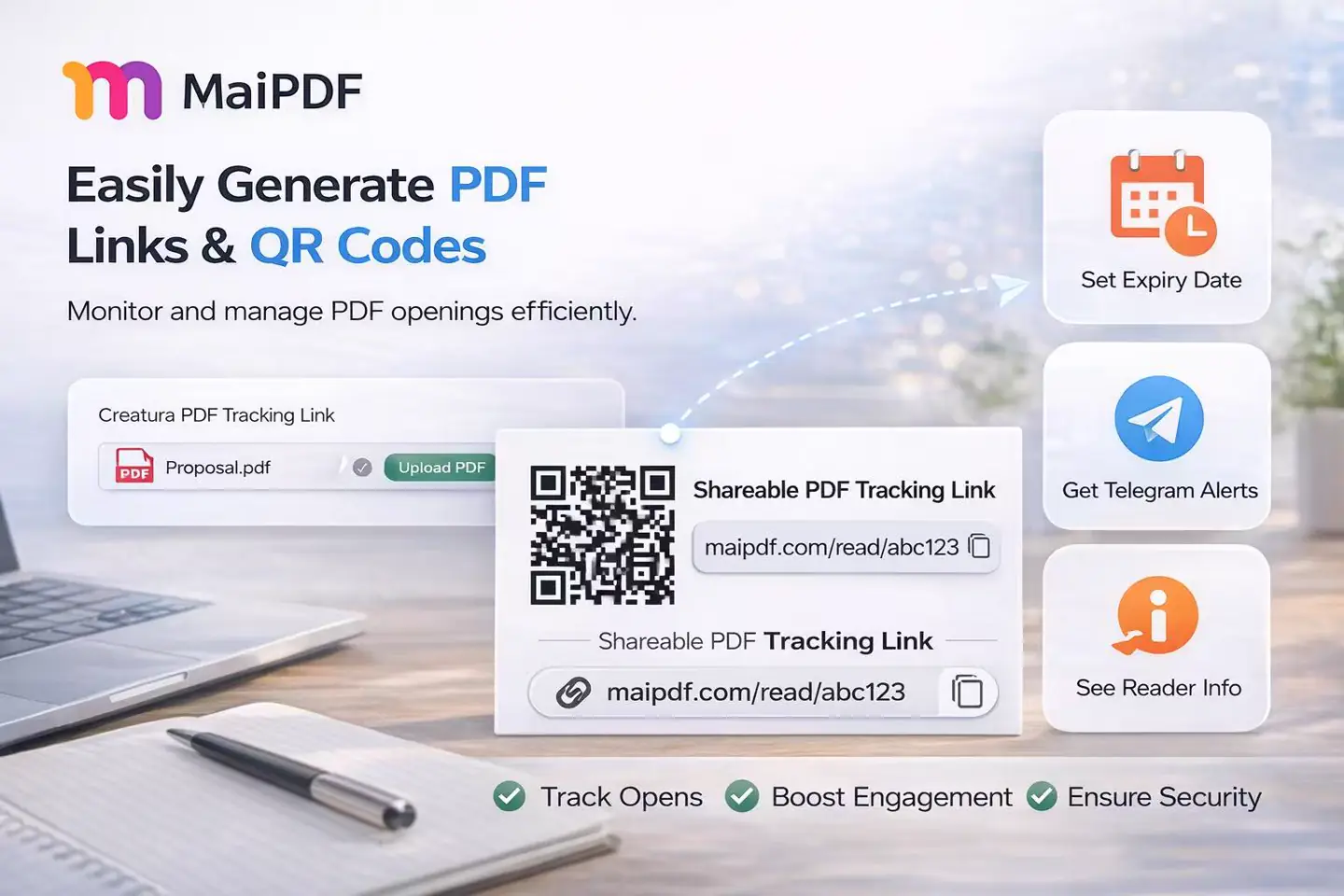
Best for mixed online + offline sharing
- Send the URL in email, chat, or social messaging.
- Print the QR on posters, packaging, handouts, or flyers.
- Both routes feed the same access records later.
Workflow
Set controls once, then share by link or scan.
DynamicQR does not create a separate QR system. It is another front door into the same governed share.
1
Upload PDF
Start with the document you want reachable from both URL and QR.
2
Set access rules
Combine open limit, email verification, expiry, watermarking, and view mode.
3
Generate link + QR
The same result page outputs both. No second setup step for QR.
4
Check records later
Use the reading code in Control Center for access records and updates.
Clicks and scans count toward the same open limit.
Expiry and verification apply regardless of entry method.
Replace the file later — the QR still points correctly.
QR & Records
Scans still show up in access records.
Whether the reader arrives by link or QR, the activity stays tied to the same share and reading code.
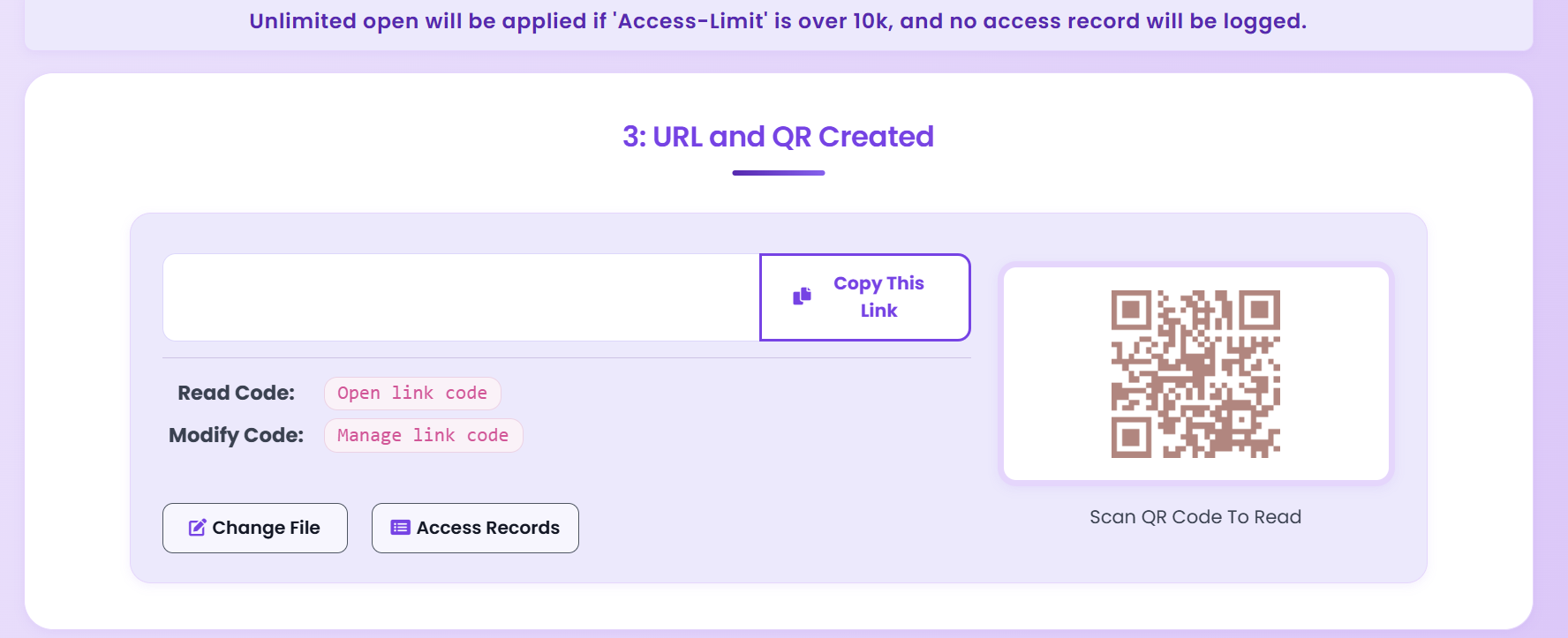
Link and QR in one place
- One share outputs both the URL and the code — no second setup step.
- The code is generated in your browser and simply encodes the share URL. Nothing about it is stored separately.
- It renders at 127×127 pixels with no download button, so it is a preview: fine on screen, under-resolution for print.
- Save the reading code and modification code before printing — without the modification code you cannot replace the file the QR points to.
History stays attached
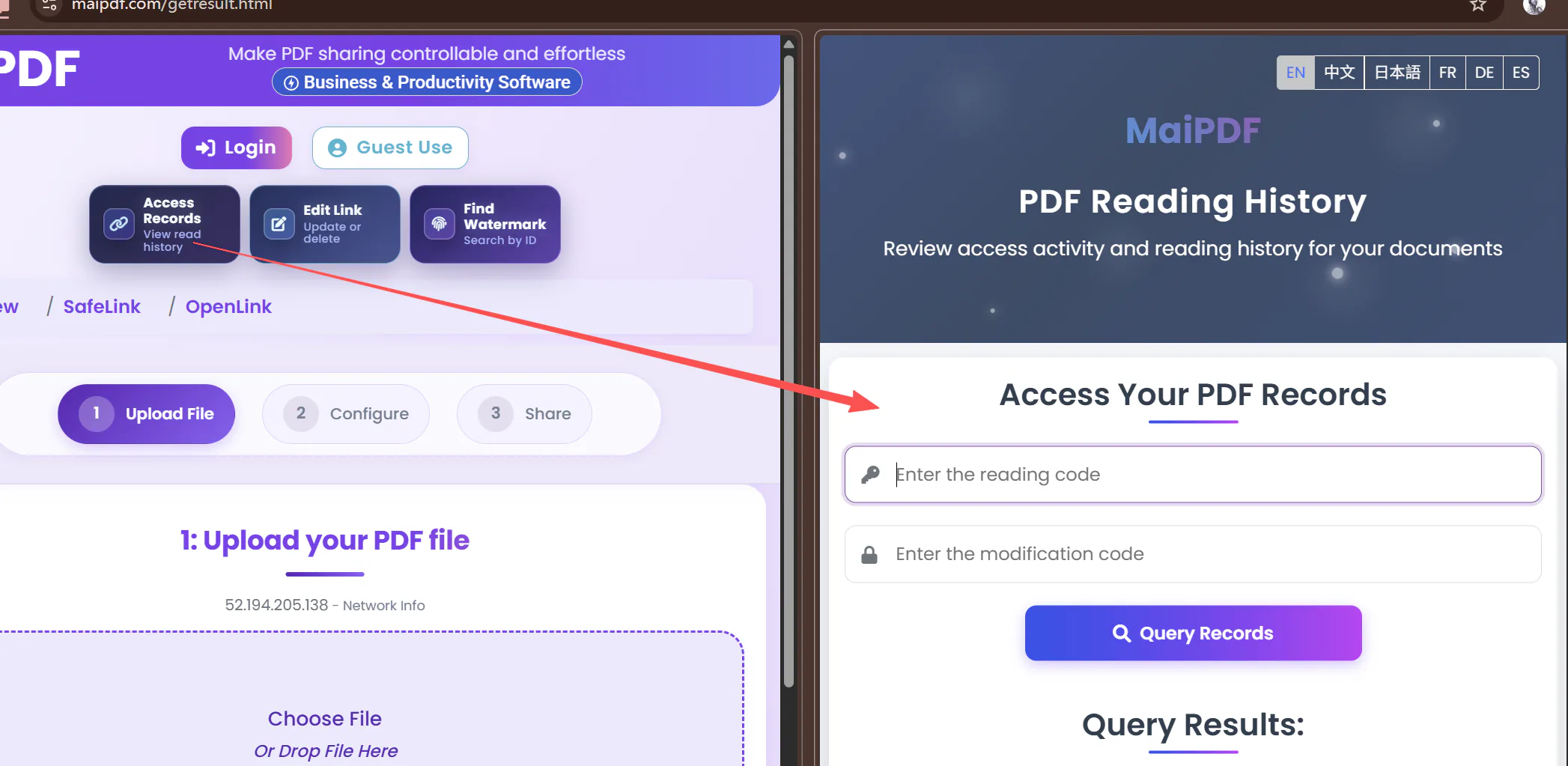
- Inspect opens after the share is already circulating — time, browser and IP for each one.
- Records do not label how a reader arrived. A scan and a click are the same URL, so both appear simply as opens.
- Session length is the one rule you can adjust in place afterwards. Open limit, expiry and the email allowlist are fixed at upload — changing those means replacing the share.
- Replace the PDF without changing the link or reprinting the QR.
Use Cases
Where DynamicQR actually wins.
Use it when the same PDF needs to live in both digital channels and physical touchpoints.
Event posters and venue signage
Print a QR on posters so attendees scan the program or briefing. Add an expiry so the link stops after the event ends.
Packaging and product labels
Put the QR on a box or label for manuals or compliance sheets. Replace the file later without reprinting.
Classroom and training handouts
Students scan on phones while others click the link in email. Records show total opens across both routes.
Flyers and property listings
Prospects scan to open a brochure. Combine email verification if you want access restricted to qualified leads.
Taking It To Print
What to get right before the code goes on paper.
A printed code cannot be edited after the fact, so the things worth checking are the ones that are awkward to fix once a thousand copies exist.
Regenerate it at print size
- The code on the result page is 127×127 pixels and there is no download button — it is meant for looking at, not for sending to a printer.
- Copy the share link instead and regenerate the code at the size your artwork needs. The code carries nothing but that URL, so a regenerated one is equivalent.
- MaiPDF builds its preview at error-correction level H, the most damage-tolerant setting. Match that when you regenerate, so the code still scans through a scuff or a fold.
- Test the printed proof with an ordinary phone camera, at the distance and lighting the real thing will face.
Decide the rules before you print
- Open limit is fixed at upload. A poster in a public place can be scanned by anyone walking past, so set the limit for the traffic you actually expect — and remember a refresh consumes another open.
- Expiry is fixed at upload too. Match it to how long the printed object will exist, not to how long the event lasts.
- Email verification defeats the point on public signage — a passer-by has no invitation. Keep it for codes printed on documents handed to named people.
- Keep the limit at or below 10,000 if you want access records and the watermark; above that the link switches to unlimited mode and loses both.
The one thing you can always change after printing is the file itself. Everything else — limit, expiry, allowlist — changes only by replacing the share, which also needs the modification code.
A code on a wall or a box outlives the campaign that put it there. Decide now whether it should expire quietly or keep serving an updated document.
FAQ
Questions people ask before printing the QR.
DynamicQR is still one controlled share — just with an additional scan entry point.
Do the QR and the link share the same open limit?
Yes. Both routes point to the same share and reading code. Every open — scan or click — counts toward the same limit and logs to the same access record.
If I update the PDF after printing the QR, do I need to reprint?
No — this is the main reason to put a MaiPDF link behind a printed QR at all. You replace the share: upload the new PDF, then point the existing reading link at it. The printed code still encodes the same URL, so every poster and label already in the world starts serving the new file. Two routes do the replacing: without an account, replace-file.html, which needs both reading codes and both modification codes — the reading code alone is not enough; signed in, Control Center, where you pick both files from your list. Keep your modification code somewhere safe before the QR goes to print.
Can I set a different limit for scans vs clicks?
Not on the same share. The open limit applies to all opens regardless of entry method. If you need different rules per route, create separate shares.
Is the QR on the result page good enough to print?
Treat it as a preview rather than print artwork. It is generated in the browser at 127×127 pixels, and there is no download button — you would be saving it off the page. That is fine for a screen, a slide or a small handout, but it is under-resolution for a poster or a product label. For anything going to a printer, copy the share link from the result page and regenerate the code at print size with whatever tool your designer uses. The code is only a container for that URL, so a regenerated one behaves identically. It is built at error-correction level H, the most damage-tolerant setting, which helps once it is on a physical surface.
What happens when someone scans it after the share has closed?
They reach the same “Expired” page a link visitor would see — no file name, no size, no reason given. Worth planning for when the code is printed on something that outlives the share: signage stays on a wall long after an event, and a label stays on a box for years. Either set the expiry to match the physical lifetime of the thing you are printing on, or plan to replace the file with a current one rather than letting the code go dead.
Do watermarks and verification apply to scans?
Yes. Watermarking, email verification, expiry, and view mode are applied per share session, not per entry method. A scan triggers the same protection layer as a link click.
Product boundary · Online Sharing vs App DRM
Use the browser for reach. Use the app for capture protection.
A QR code is a convenient entry point to the same browser share and its access records. It does not create operating-system screenshot protection. When screenshot blocking, encrypted .maipdf files, device binding, or remote revoke is required, use MaiPDF App DRM.
Start Here
Create one share and export the QR.
Upload your PDF, enable your rules, then use the same share link online and the same QR code in print. Manage everything later from Control Center using the reading code.